
cPFence offers a powerful, browser-based WebUI for managing all monitoring and security settings across your Enhance cluster. The WebUI is fully mobile-friendly, so you can manage monitoring and resource thresholds from any device—including your phone or tablet.
Our DDos protection module instantly blocks any IP with more than 100 concurrent connections (CONNECTIONS_LIMIT) to the server. It is designed to block aggressive IPs that repeatedly attempt attacks. Initially, the block is temporary, but if the same IP triggers multiple attacks, it results in a permanent block, and our IPDB is updated accordingly so all servers get the latest protection. You can adjust the limit in the configuration file located at /opt/cpfence/config.conf. The default value of 100 is recommended for optimal performance.
You can adjust all monitoring / DDos settings and notification thresholds for a specific server or all servers using the WebUI, or edit the configuration file manually if you prefer the CLI.
How to Adjust Owl Monitoring and Thresholds in the WebUI
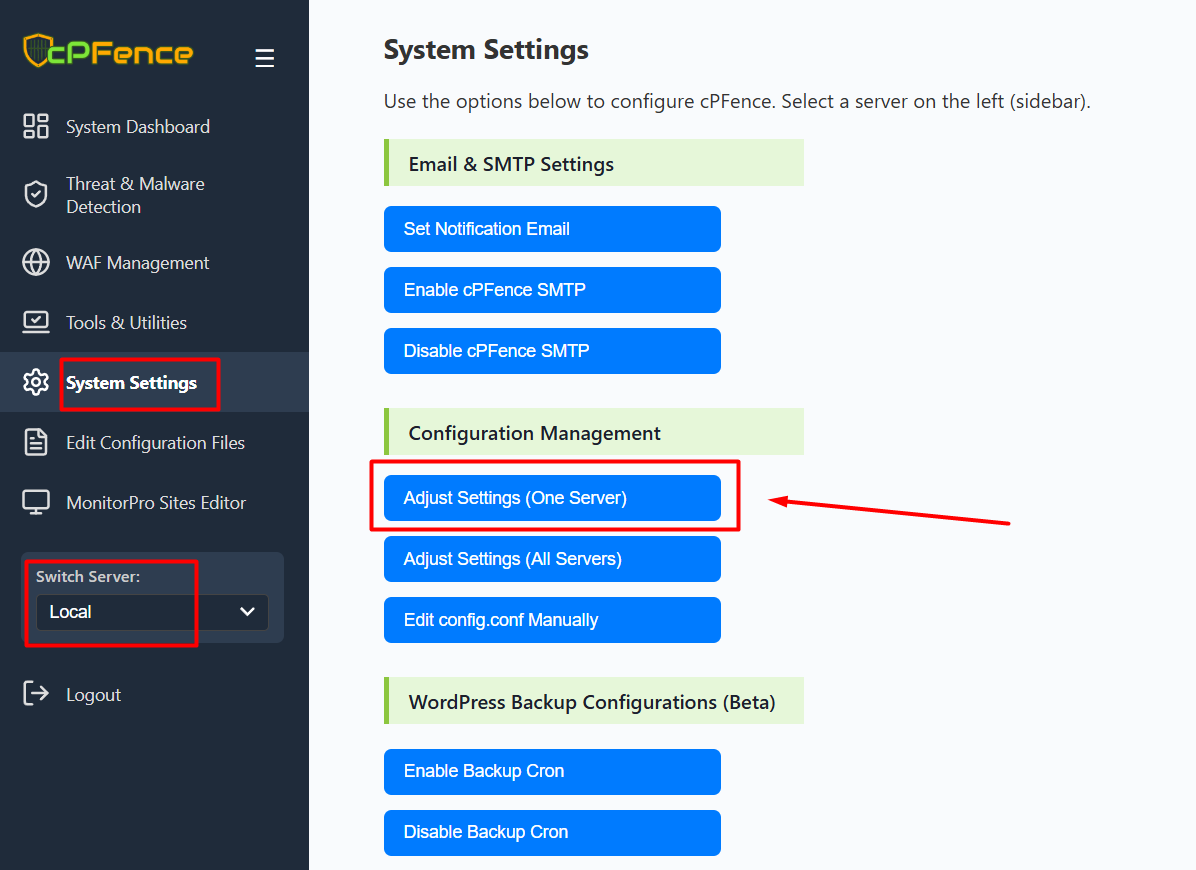
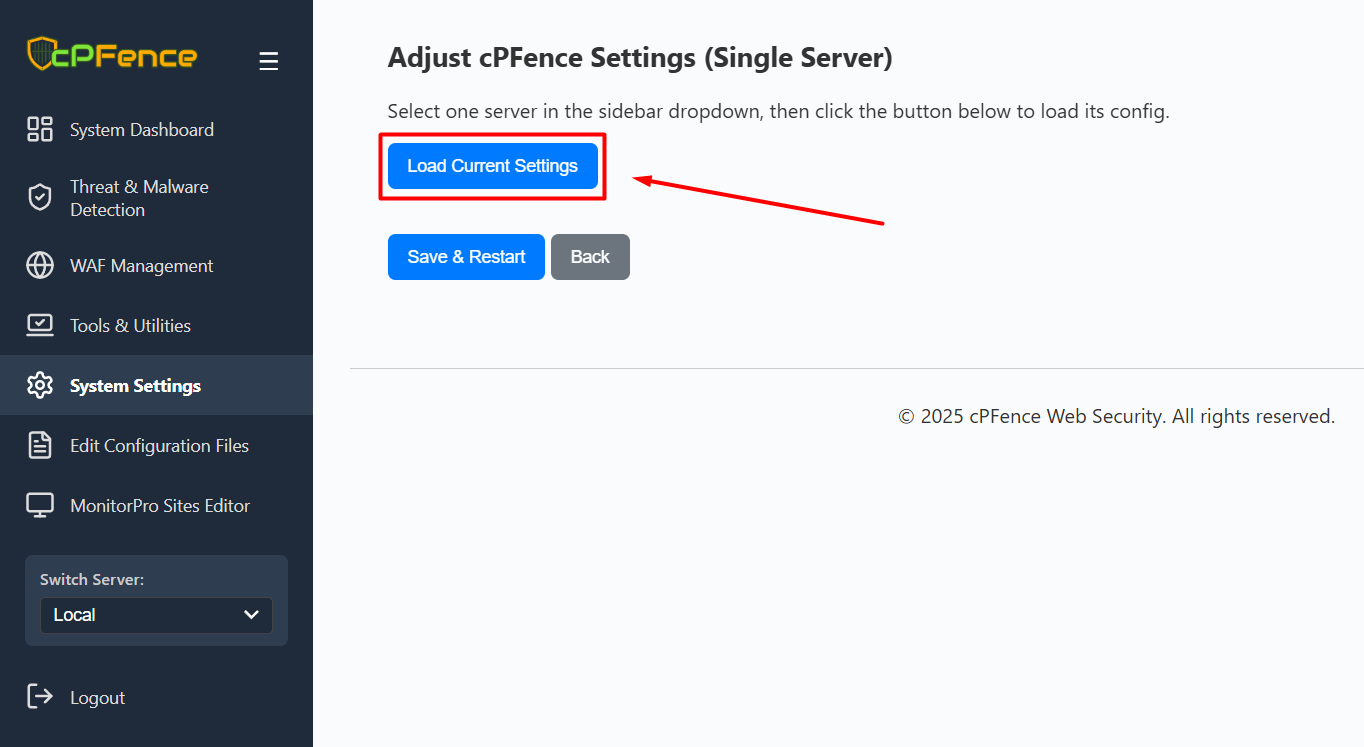
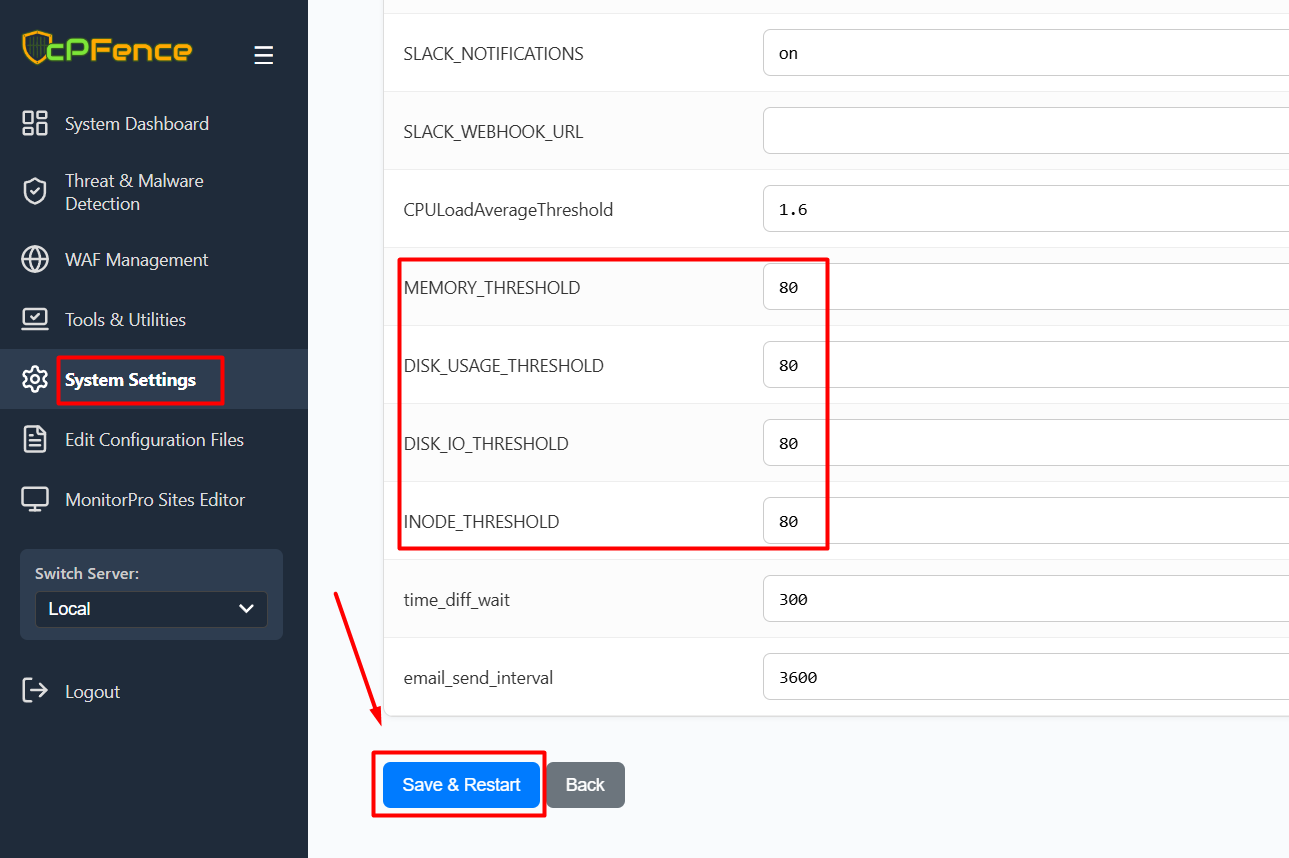
- Open the cPFence WebUI on your Main Control Panel server.
- Go to System Settings from the sidebar menu.
- Use the Switch Server dropdown (bottom left) to select the server you want to adjust or choose All Servers for cluster-wide settings.
- Click Adjust Settings (One Server) or Adjust Settings (All Servers) as needed.
- Click Load Current Settings, make your changes (such as setting CONNECTIONS_LIMIT for DDos protection or enabling/disabling Owl monitoring or setting thresholds for CPU, memory, disk, etc.), and click Save & Restart to apply.
CLI and Manual Configuration
All Owl settings and thresholds are stored in the main configuration file:
/opt/cpfence/config.conf-
EMAIL_RECIPIENT: Set notification emails directly in WebUI :
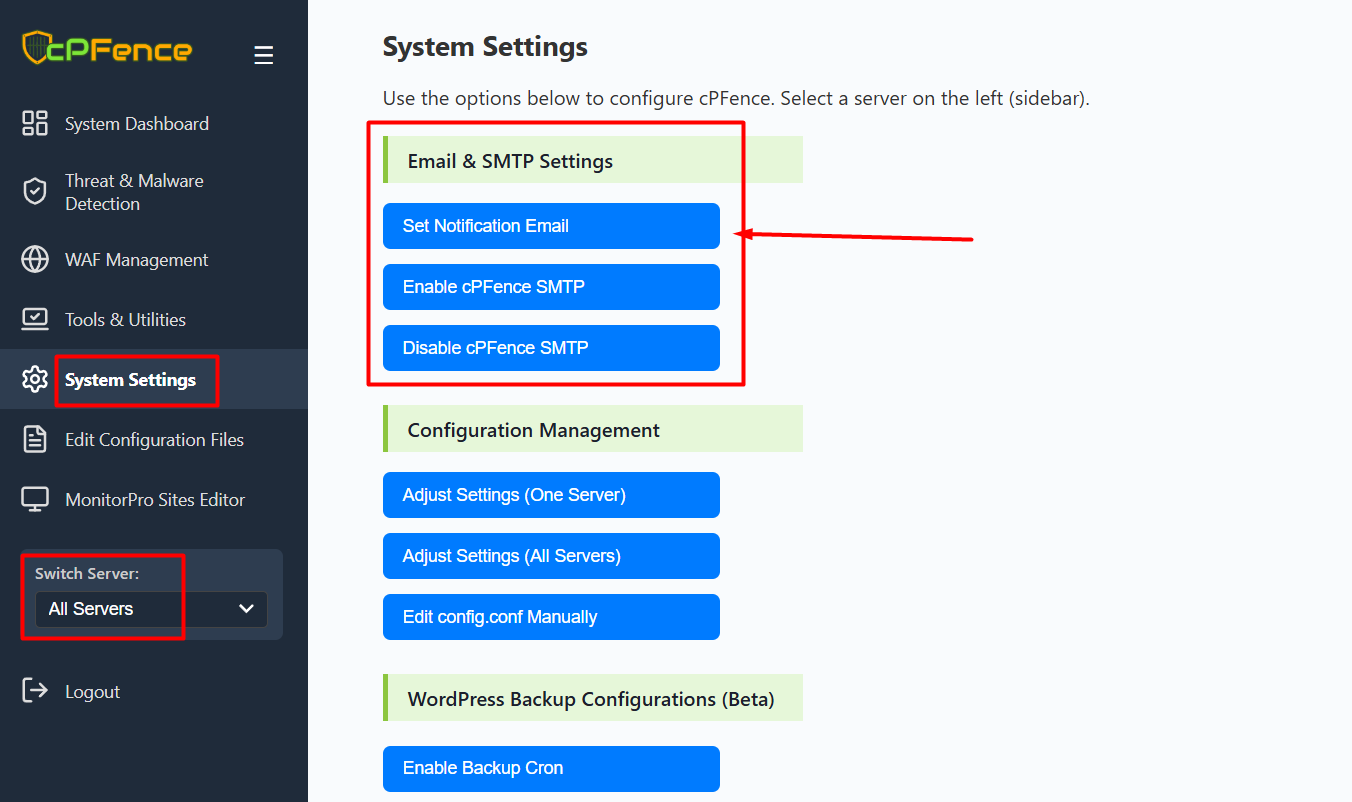
-
or by running:
cpfence --set-email [email protected] -
To enable or disable Owl DDos Protection via CLI, use:
cpfence --enable-DDos
cpfence --disable-DDos
Blacklisted Users (Deprecated)
The Blacklisted Users feature is now deprecated. For MySQL resource management, use Owl AutoMySQL instead. See the recommended guide: What Is Owl AutoMySQL and How Do I Use It?
# Deprecated - Use Owl AutoMySQL instead!
BLACKLISTED_USERS="Username1_|Username2_|Username3_"
MAX_EXECUTION_DURATION="30"
Thresholds & Notification Timing
- CPULoadAverageThreshold: Sets the CPU load average threshold to trigger notifications. Default is 80% of detected installed CPU.
- MEMORY_THRESHOLD: Sets the memory usage threshold. Default is 80%.
- DISK_USAGE_THRESHOLD: Sets the disk usage threshold. Default is 80%.
- DISK_IO_THRESHOLD: Sets the disk I/O usage threshold. Default is 80%.
- INODE_THRESHOLD: Sets the inode usage threshold. Default is 80%.
- time_diff_wait: Resource usage duration (seconds) before sending notifications. Default is 300.
- email_send_interval: Interval between notification emails (seconds). Default is 3600.
cPFence Owl™ ensures seamless server operation and robust security with instant malware blocking and adaptive monitoring. Adjust your monitoring and threshold settings easily via the WebUI or by editing the configuration file directly.
Need Further Assistance?
Visit our Knowledgebase or contact our support team for help.