
This guide explains how to manage IP addresses by adding them to the whitelist or blacklist in cPFence. Whitelisting allows specific IPs to bypass security rules, while blacklisting blocks access from specific IPs. Both IPv4 and IPv6 addresses are supported. You can manage IPs using the browser-based WebUI or via CLI commands.
Managing IPs Using the cPFence WebUI
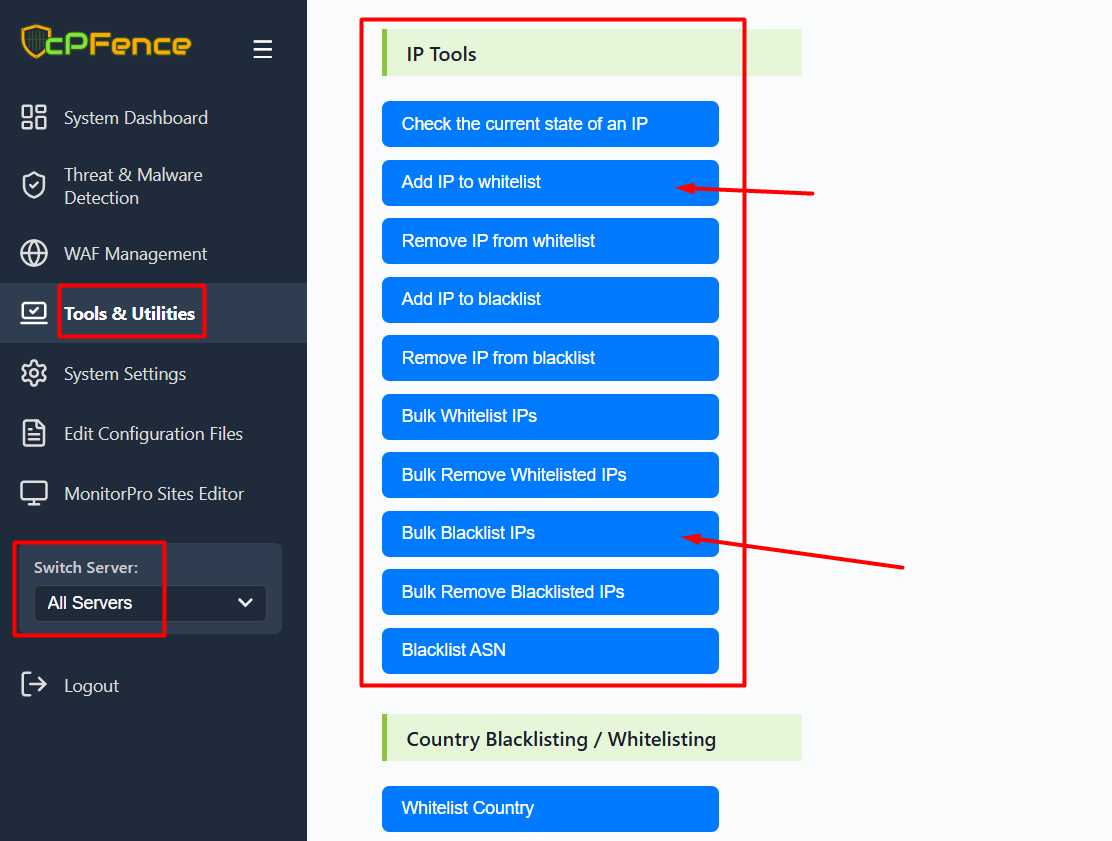
Open the cPFence WebUI on your Main Control Panel server.
- Go to Tools & Utilities in the sidebar.
- Under the IP Tools section, you will see options to:
- Add IP to whitelist
- Remove IP from whitelist
- Add IP to blacklist
- Remove IP from blacklist
- Bulk Whitelist IPs
- Bulk Blacklist IPs
- Bulk Remove Whitelisted IPs
- Bulk Remove Blacklisted IPs
- Select the desired action, enter the IP (or IPs in bulk tools), and confirm.
The screenshot above is just a sample—the steps are the same for any whitelist/blacklist action, both for single and bulk entries.
Using CLI :
Add IP to Whitelist
To add an IP to the whitelist, use the following command:
cpfence --add-whitelist-ip IPReplace IP with the IP address you want to whitelist, e.g., 192.168.1.1/23 or 2001:db8::1/64.
Remove IP from Whitelist
To remove an IP from the whitelist, use the following command:
cpfence --del-whitelist-ip IPReplace IP with the IP address you want to remove, e.g., 192.168.1.1 or 2001:db8::1.
Add IP to Blacklist
To add an IP to the blacklist, use the following command:
cpfence --add-blacklist-ip IPReplace IP with the IP address you want to blacklist, e.g., 192.168.1.1/24 or 2001:db8::1/64.
Remove IP from Blacklist
To remove an IP from the blacklist, use the following command:
cpfence --del-blacklist-ip IPReplace IP with the IP address you want to remove, e.g., 192.168.1.1 or 2001:db8::1.
Bulk Importing IPs for Whitelisting or Blacklisting
cPFence supports bulk importing IPs from files or URLs for whitelisting or blacklisting. This allows you to manage IP access across all your servers in one step. Both IPv4 and IPv6 addresses are supported.
Example Usage
To bulk whitelist IPs, use the following command:
cpfence --bulk-whitelist-ip https://a.com/custom_whitelist.txtTo automate this process with a cron job, you can add a crontab to keep all your servers synced with your custom rules:
Example Usage:
0 * * * * /usr/local/bin/cpfence --bulk-blacklist-ip https://a.com/custom_blacklist.txtThis feature supports both full paths and valid URLs.
Available Bulk Import Options :
-
cpfence --bulk-whitelist-ip URL_OR_FILE
Bulk add IPs from a URL or file to the whitelist.
(e.g.,cpfence --bulk-whitelist-ip https://a.com/file.txt) -
cpfence --bulk-blacklist-ip URL_OR_FILE
Bulk add IPs from a URL or file to the blacklist.
(e.g.,cpfence --bulk-blacklist-ip /PATH/TO/FILE) -
cpfence --bulk-del-wl-ip URL_OR_FILE
Bulk delete IPs from a URL or file from the whitelist.
(e.g.,cpfence --bulk-del-wl-ip https://a.com/file.txt) -
cpfence --bulk-del-bl-ip URL_OR_FILE
Bulk delete IPs from a URL or file from the blacklist.
(e.g.,cpfence --bulk-del-bl-ip /PATH/TO/FILE)
Manually Reviewing IP Lists
You can manually review or manage your custom whitelist and blacklist files for both IPv4 and IPv6 here:
- IPv4 Whitelist:
/opt/cpfence/user-config/cpfipdb/whitelistips.txt - IPv4 Blacklist:
/opt/cpfence/user-config/cpfipdb/blacklistips.txt - IPv6 Whitelist:
/opt/cpfence/user-config/cpfipdb/whitelistips_v6.txt - IPv6 Blacklist:
/opt/cpfence/user-config/cpfipdb/blacklistips_v6.txt
Use these commands to effectively manage IP access in cPFence, ensuring your network is secure and only authorized IPs can interact with your server.
Need Further Assistance?
Visit our Knowledgebase or contact our support team for help.