
You can manage IP whitelists and blacklists easily using either the WebUI or the command line interface (CLI). These lists control which IPs are allowed or denied access by the cPFence Firewall and other protection modules.
Manage IPs from the WebUI
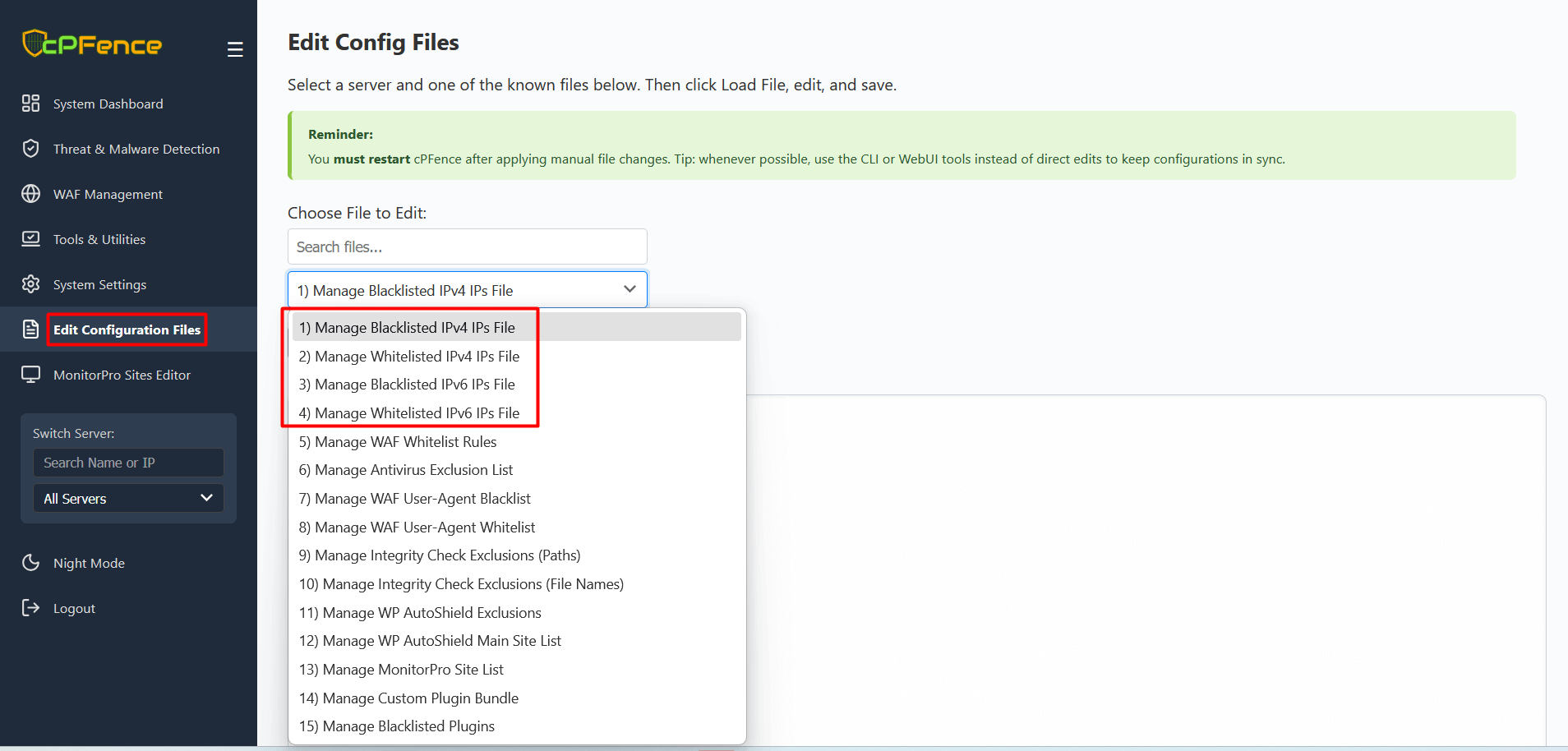
From the WebUI, navigate to:
- System Settings → Edit Configuration Files
- Select one of the following files to edit manually:
1) Manage Blacklisted IPv4 IPs File
2) Manage Whitelisted IPv4 IPs File
3) Manage Blacklisted IPv6 IPs File
4) Manage Whitelisted IPv6 IPs File
These files correspond to the following paths on your server:
Blacklisted IPv4:   /opt/cpfence/user-config/cpfipdb/blacklistips.txt
Whitelisted IPv4:   /opt/cpfence/user-config/cpfipdb/whitelistips.txt
Blacklisted IPv6:   /opt/cpfence/user-config/cpfipdb/blacklistips_v6.txt
Whitelisted IPv6:   /opt/cpfence/user-config/cpfipdb/whitelistips_v6.txt
After editing these files manually, make sure to restart cPFence to apply changes:
cpfence --restartManage IPs via WebUI or CLI Commands
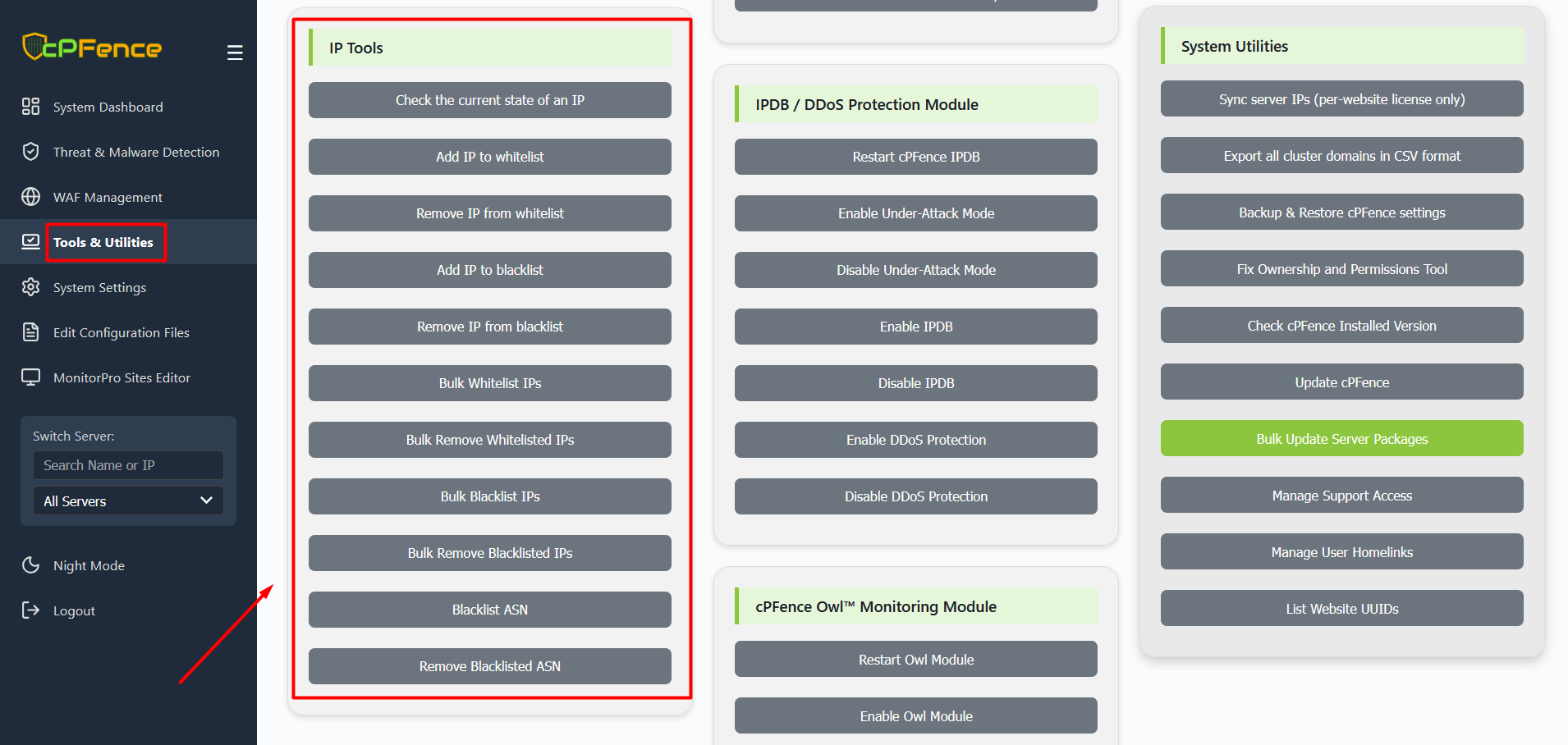
Or you can add, remove, or check IPs directly using these CLI commands:
cpfence --check-ip IP                              # Check the current state of an IP
cpfence --add-whitelist-ip IP                      # Add IP to whitelist
cpfence --del-whitelist-ip IP                      # Remove IP from whitelist
cpfence --add-blacklist-ip IP                      # Add IP to blacklist
cpfence --del-blacklist-ip IP                      # Remove IP from blacklist
cpfence --bulk-whitelist-ip URL_OR_FILE            # Bulk add IPs to whitelist from a file or URL
cpfence --bulk-blacklist-ip URL_OR_FILE            # Bulk add IPs to blacklist from a file or URL
cpfence --bulk-del-wl-ip URL_OR_FILE               # Bulk delete IPs from whitelist
cpfence --bulk-del-bl-ip URL_OR_FILE               # Bulk delete IPs from blacklist
Examples:
cpfence --add-whitelist-ip 192.168.1.1/23
cpfence --bulk-blacklist-ip https://example.com/bad_ips.txt
cpfence --check-ip 192.168.1.1
Tips
- It’s recommended to use the WebUI or CLI commands rather than manually editing files to avoid sync issues.
- IPv4 and IPv6 lists are managed separately, so ensure you edit the correct file type.
- Bulk operations are ideal when managing large IP lists or external feeds.
Need Help?
If you have questions or encounter issues managing your IP lists, please contact our support team through the client portal.