
If you no longer want to use cPFence WordPress backups, follow the steps below to fully disable backup creation and delete all existing backup data from your servers.
Option 1: Disable and Delete Backups via CLI (All Servers)
On your main control panel server, start by opening terminals to all servers:
cpfence --multirunThen run the following commands one by one:
cd /
rm -rf /cpf_wp_backups

cpfence --cpf-backup-cron-off
cpfence --cpf-remote-backup-off
Important: If you are not comfortable running Linux commands, it is safer to log in to each server individually and run the commands there. This helps avoid accidental mistakes caused by lack of Linux experience.
Option 2: Disable Backups from the WebUI
You can also disable WordPress backups from the WebUI:
- WebUI → System Settings → WordPress Backup Configurations
- Use Manage Backup Cron and Manage Remote Backups to turn backups off.
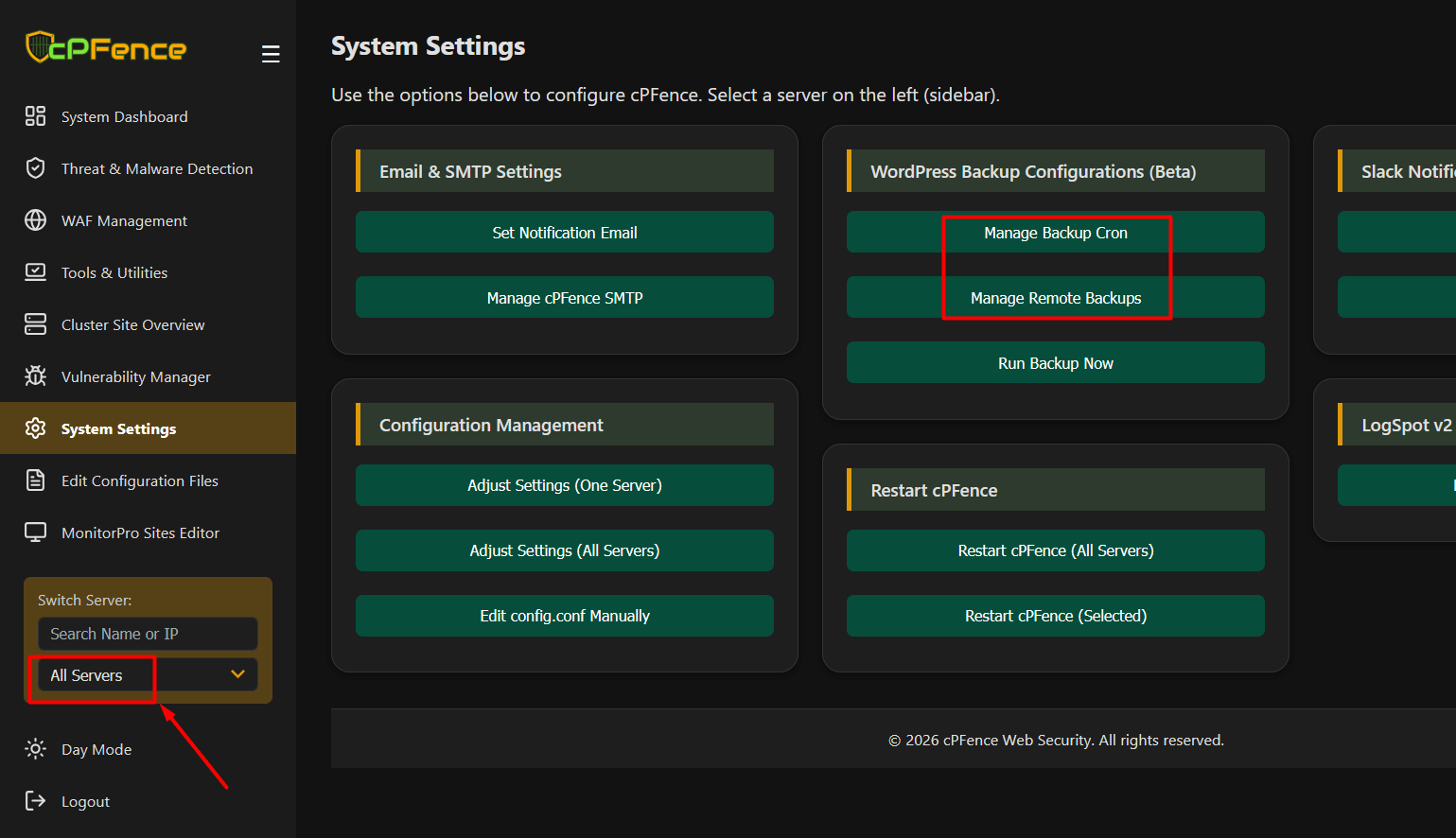
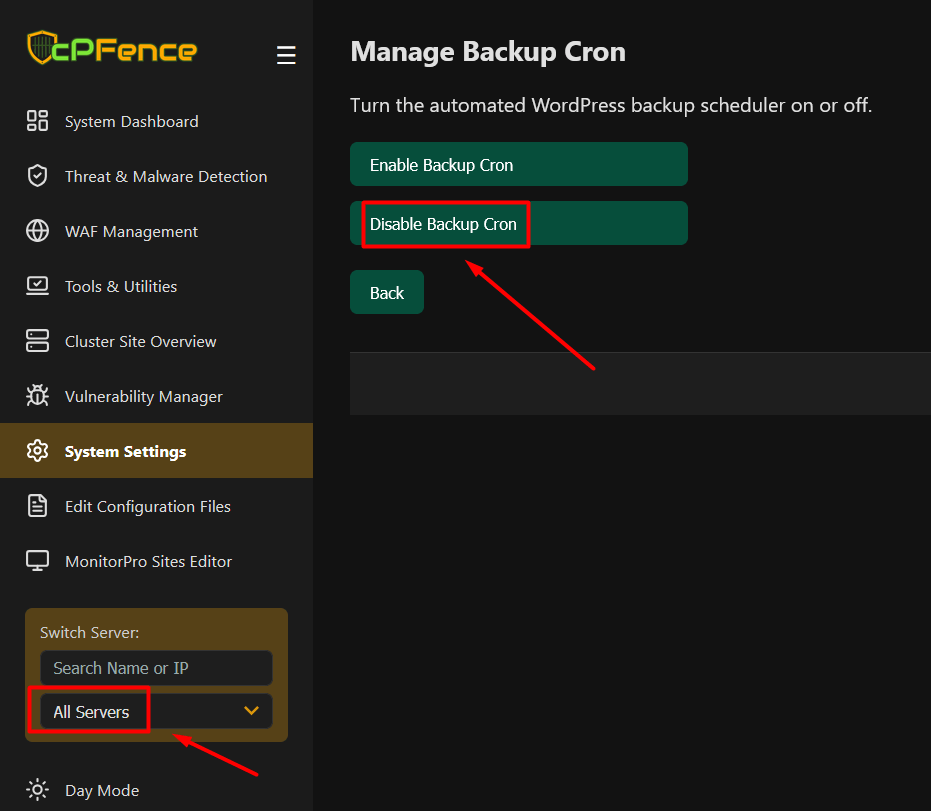
This will disable backup cron jobs on all servers. However, existing backup data will not be deleted unless you run the CLI commands shown above.
Need Further Assistance?
Visit our Knowledgebase or contact our support team for help.