
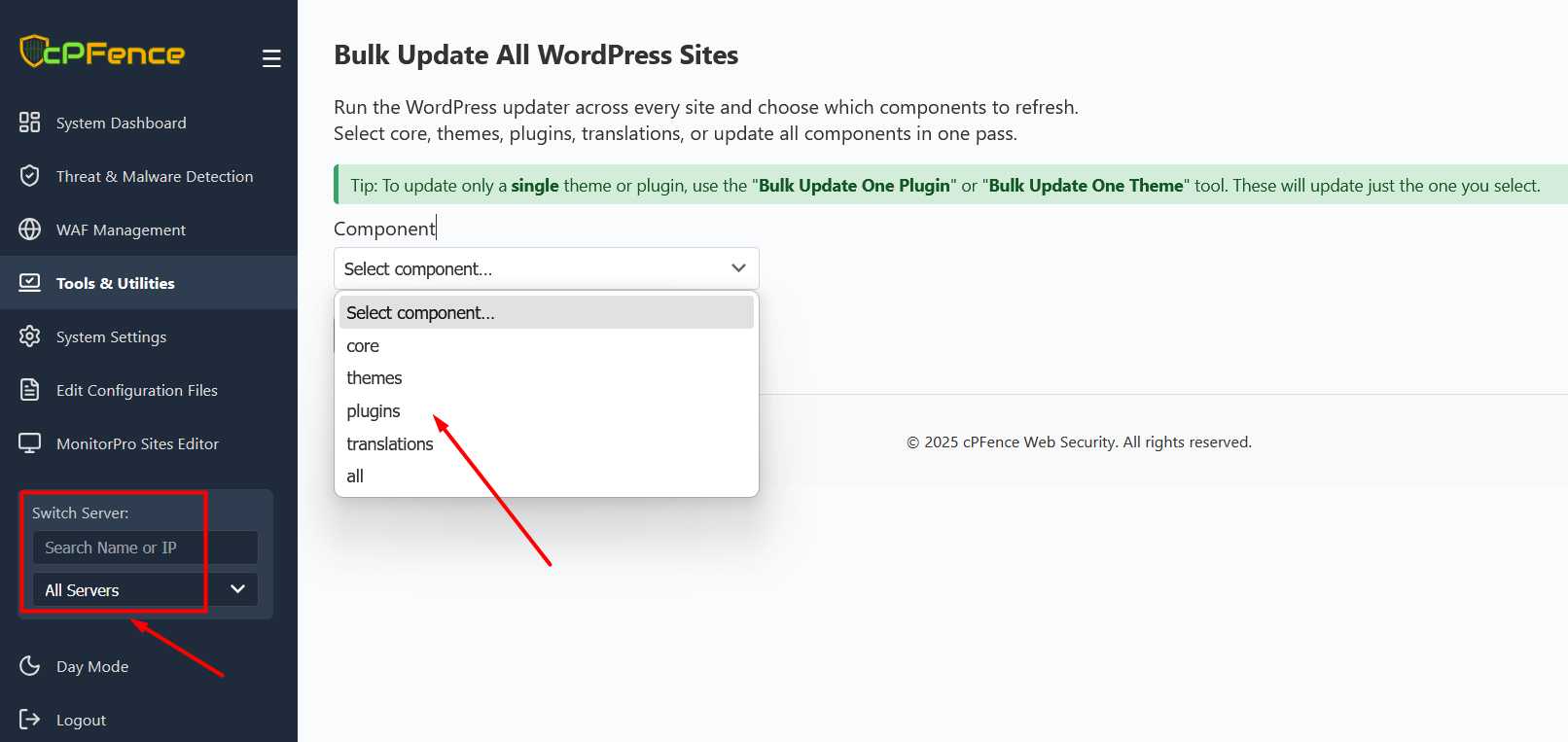
New! You can now use the WebUI to run the WordPress updater across every site and choose which components to refresh. Select core, themes, plugins, translations, or update all components in one pass. See the picture below :
Managing WordPress sites securely and efficiently is now easier with cPFence's WordPress management tools. These features allow you to bulk update or enable/disable automatic updates for WordPress core, plugins, and themes across your server. Below is a step-by-step guide to set up and use these features.
Step 1: Generate a List of WordPress Sites
-
Start by generating a list of all WordPress sites on your server using the following command:
cpfence --generate-wp-sites-listThe list will be saved in
/var/log/cpfenceav/wp-sites-list.txt. You can review and edit this file to exclude sites where you don’t want updates applied.
Step 2: Perform Bulk WordPress Updates
-
Bulk Update All Sites (Interactive):
Use the following command to update WordPress core, plugins, themes, and translations on all sites in your list:cpfence --bulk-update-wordpressThis command updates all listed WordPress installations and performs post-update verification for each site. Here’s what it does:
- Automatically checks if the site is loading correctly after updates.
- Resolves common issues like stuck
.maintenancefiles to bring sites back online. - Logs all updates and errors, providing detailed insights for review.
New — Bulk Update Without Confirmation (Choose Components):
Run a non-interactive bulk update for specific components (ideal for automation/CI):cpfence --bulk-auto-update-all-sites [all|core|plugins|themes|translations]Examples:
cpfence --bulk-auto-update-all-sites all
cpfence --bulk-auto-update-all-sites plugins
cpfence --bulk-auto-update-all-sites themes
Step 3: Enable Auto-Updates
-
Enable Auto-Updates (Choose Components):
Configure automatic updates only for what you want:cpfence --enable-wp-auto-updates [all|core|plugins|themes|translations]Examples:
cpfence --enable-wp-auto-updates all
cpfence --enable-wp-auto-updates core
cpfence --enable-wp-auto-updates plugins
To turn them off again, use:
cpfence --disable-wp-auto-updates [all|core|plugins|themes|translations]
Step 4: Disable Auto-Updates (Optional)
-
Disable Auto-Updates for Certain Sites:
If you need to disable auto-updates for older or customized sites, use this command:cpfence --disable-wp-auto-updatesThis gives you control over when and how updates are applied to specific installations.
Step 5: Monitor Vulnerabilities
-
Export a Vulnerability Scan Report:
Generate a detailed report of vulnerabilities in WordPress core, plugins, and themes for further analysis:cpfence --vuln-exportThis report is saved in CSV format and provides valuable insights into potential issues that need attention.
- All bulk/auto-update tools respect your prepared site list at
/var/log/cpfenceav/wp-sites-list.txt, so you stay in control of which sites are updated.
Key Benefits of Bulk Updates
- Time Savings: Update dozens or hundreds of WordPress sites in minutes instead of hours.
- Post-Update Verification: Ensures sites are functioning properly after updates, reducing the risk of downtime or errors.
- Error Handling: Automatically resolves common issues like stuck
.maintenancefiles. - Detailed Logging: Keeps a record of all actions, including successes and errors, for easy troubleshooting.
When to Use Auto-Updates ?
- Recommended for: Up-to-date sites using compatible plugins and themes, ensuring quick security updates and saving time.
- Not Recommended for: Sites with outdated or custom themes/plugins that may cause compatibility issues.
For older or customized sites, we recommend manual updates to avoid potential problems. Use the WordPress Cleaning Guide to address issues and prepare your sites for auto-updates.
Need Further Assistance?
If you have questions or need help , please contact our support team via the client portal.