
cPFence allows you to exclude known-safe entries from the daily WordPress database malware scan. This is helpful when you have custom code or safe data that gets flagged repeatedly.
Manage Whitelisted Entries from the WebUI
You can easily manage both whitelisted strings and full database exclusions using the WebUI:
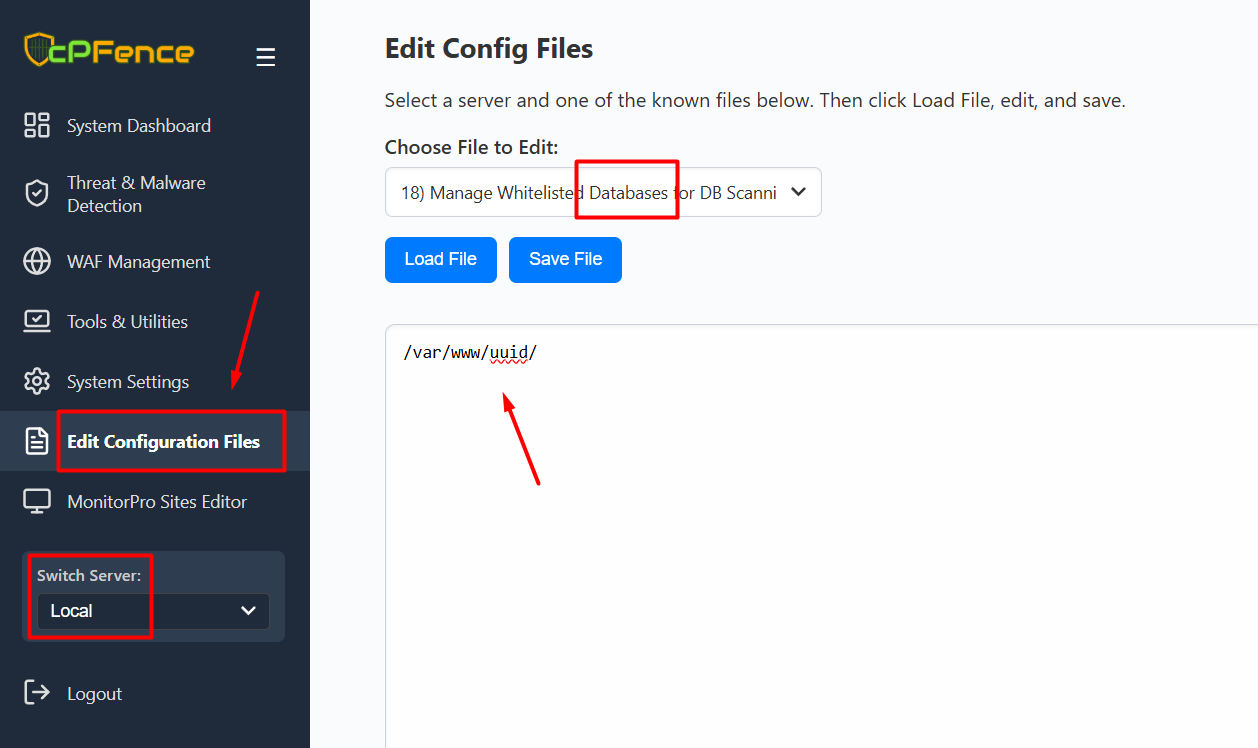
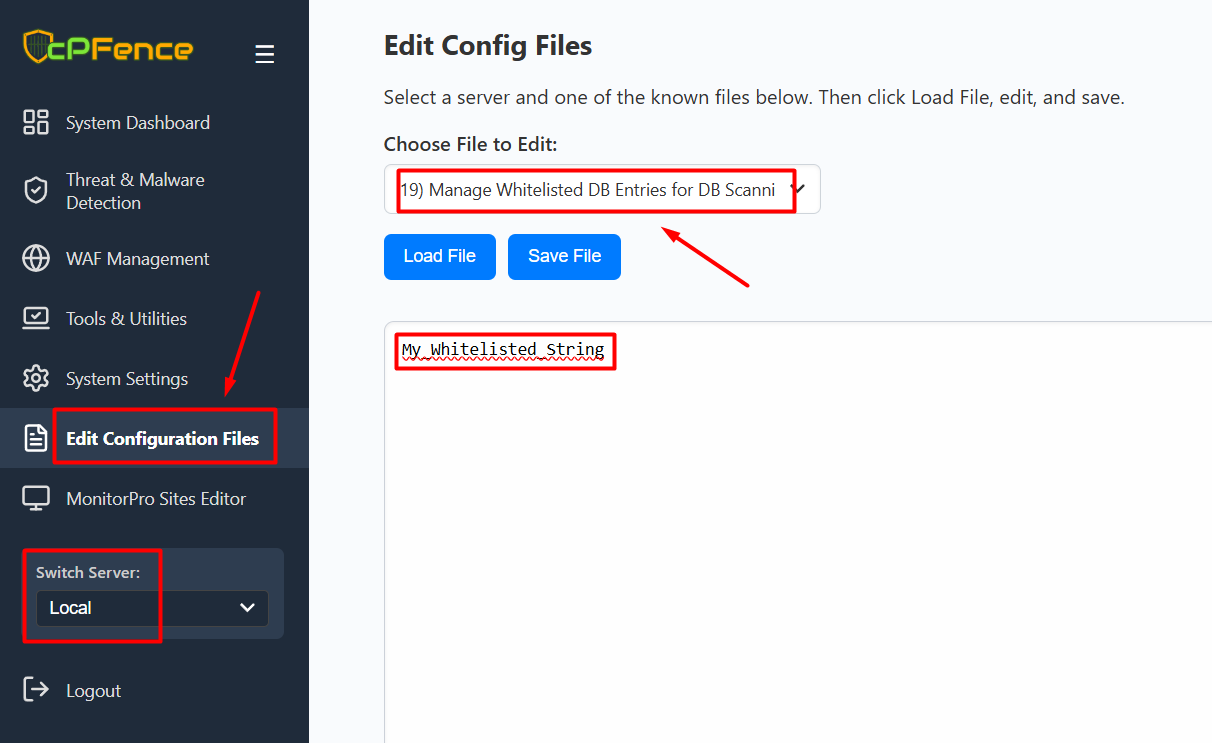
- Navigate to Edit Configuration Files from the left menu.
- Select the target server from the “Switch Server” menu.
- For whitelisting a site and all its associated databases : choose 18) Manage Whitelisted Databases for DB Scanning.
- For whitelisting specific DB entries server-wide : choose 19) Manage Whitelisted DB Entries for DB Scanning.
- Click Load File, add your entry, and then click Save File.
Using CLI :
Whitelist Specific Database Entries
To exclude a specific database entry from scanning, add the exact string you want to whitelist to this file:
/opt/cpfence/user-config/cpfmrtp/whitelisted_db_entries.txtEach entry should be on a separate line.
Whitelist an Entire Database (Full Wordpress install)
To completely exclude a website’s database from the scan, add its full path like this:
/var/www/uuid/Place this inside the following file:
/opt/cpfence/user-config/cpfmrtp/whitelisted_databases.txtThis will skip scanning the entire database of the specified site during the daily database malware scan.
Need Further Assistance?
Visit our Knowledgebase or contact our support team for help.