
The cPFence Backup Module offers powerful site-level backup and restore functionality for all WordPress websites managed through your Enhance servers. This guide will show you how to enable and configure the module using either the WebUI or the configuration file.
Step 1: Enable the Backup Module
You can enable the backup module directly from the cPFence WebUI:
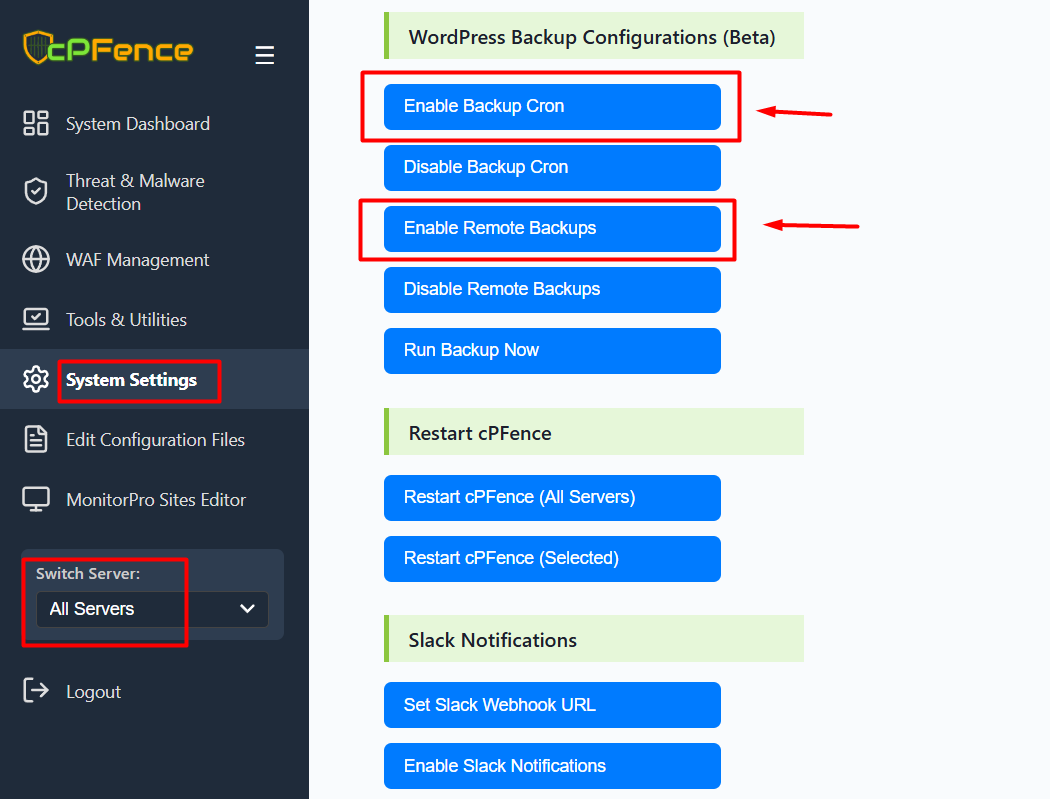
- Log in to the cPFence WebUI.
- Go to System Settings.
- Enable both:
- Backup Module
- Remote Backups (optional)
Alternatively, if you prefer editing the configuration file directly, open /opt/cpfence/config.conf and ensure the following lines are set:
CPF_BACKUP_ENABLED="on"
CPF_REMOTE_BACKUP_ENABLED="on"
To enable remote backups, ensure a passwordless SSH connection is established between your server and the remote backup server.
Step 2: Configure Backup Settings
Still under System Settings in the WebUI, you can configure:
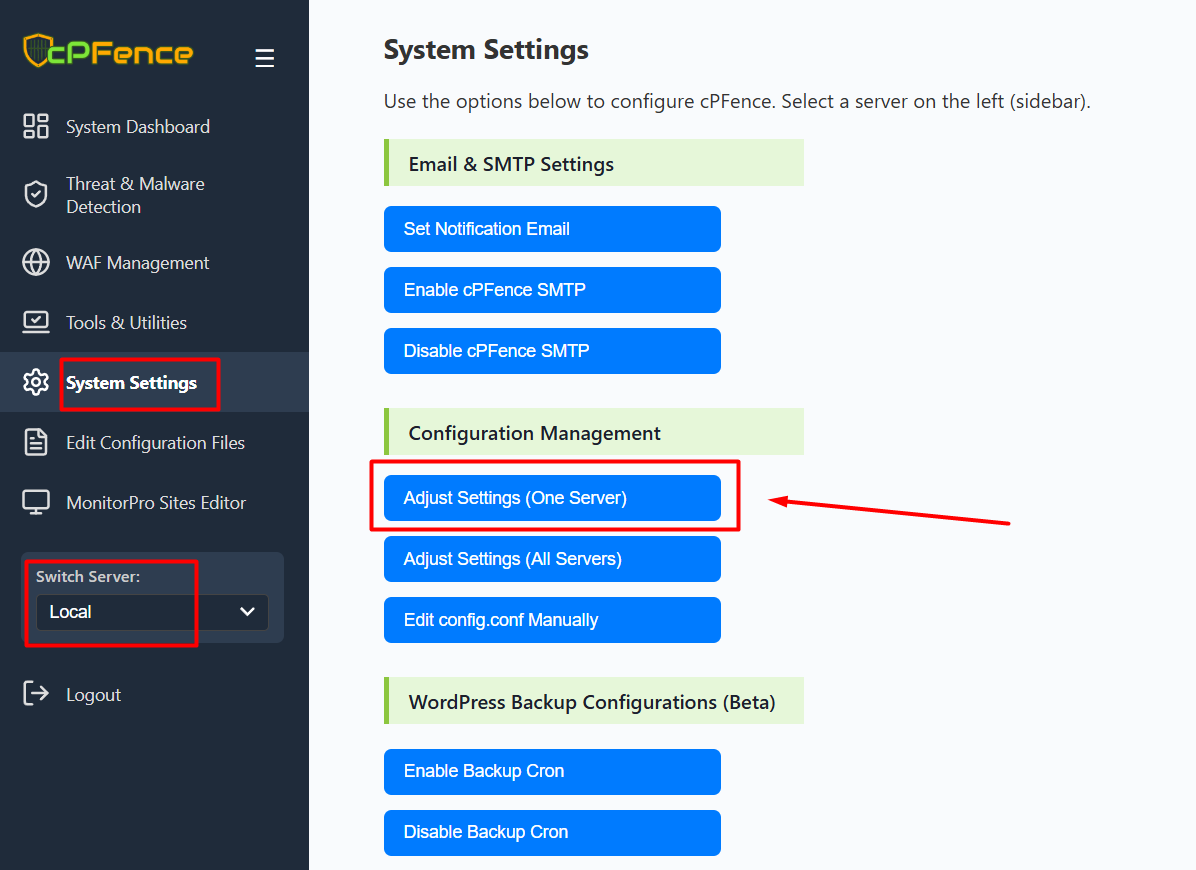
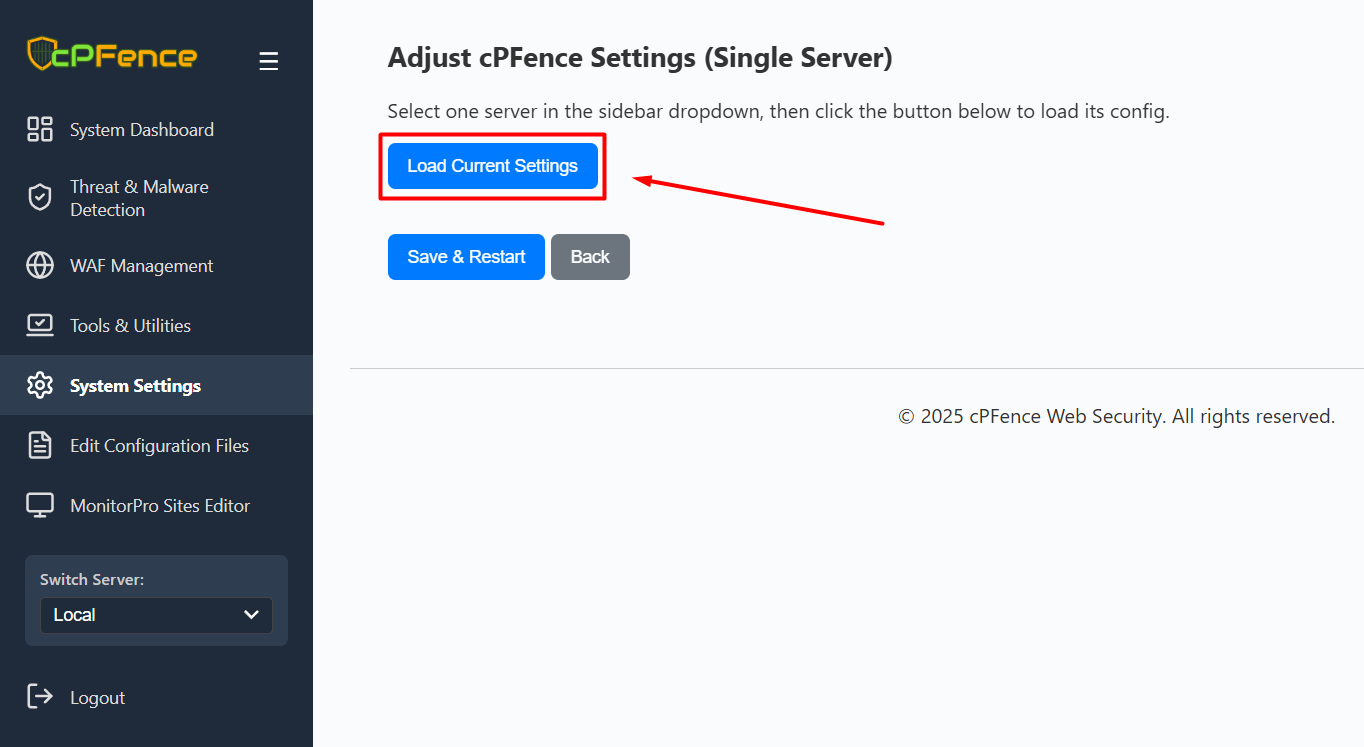
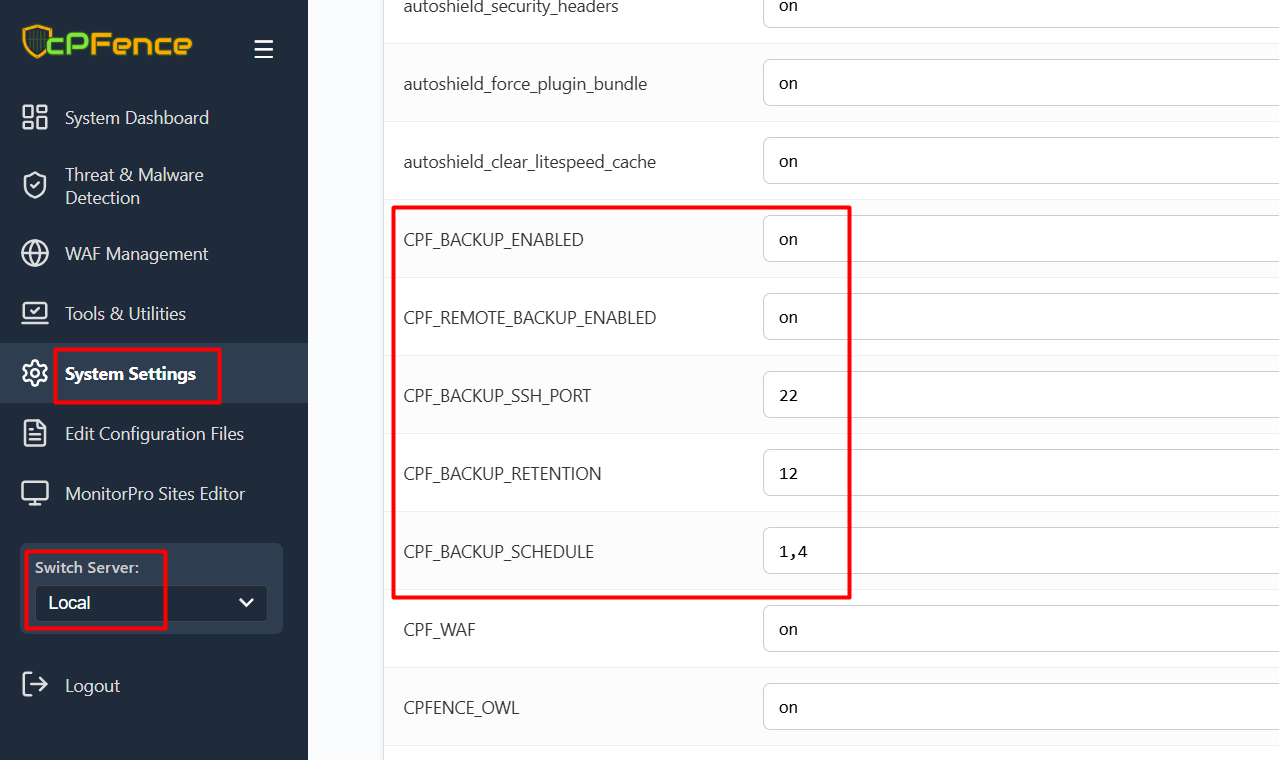
- Custom SSH Port – Change the port used to connect to your remote server.
- Retention Policy – Set the number of backup snapshots to retain per WordPress site.
- Backup Schedule – Choose "daily" or specific weekdays (0=Sunday to 6=Saturday).
These settings correspond to the following options in the /opt/cpfence/config.conf file:
CPF_BACKUP_SSH_PORT="22"
CPF_BACKUP_RETENTION="12"
CPF_BACKUP_SCHEDULE="1,4"
Step 3: Start Using Backups
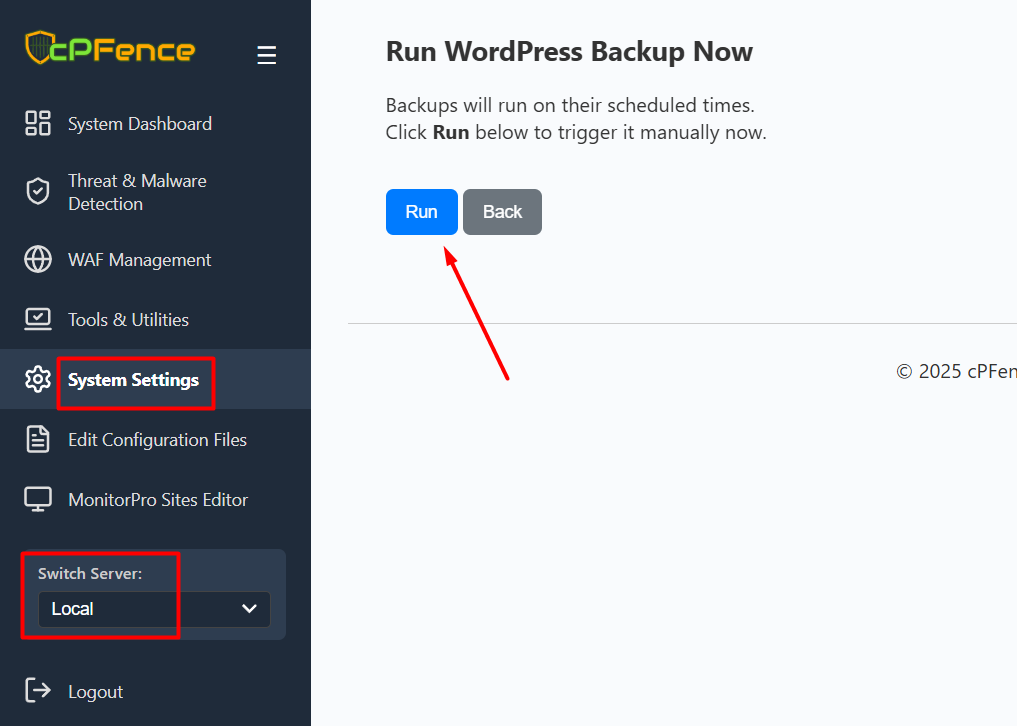
Once enabled, backups can be run manually or will follow your defined schedule. You can also trigger backups or restores for specific sites or all sites directly from the cPFence WebUI.
For CLI users, these commands are also available:
cpfence --cpf-backup-cron-on
cpfence --cpf-remote-backup-on
cpfence --bulk-backup-wp-sites
cpfence --bulk-restore-wp-sites
Need Further Assistance?
If you encounter any issues or need additional help, feel free to reach out to our support team via your client portal.