
Managing Email Quarantine via WebUI and CLI
cPFence gives you full control over how email threats are handled, including automatic quarantining of infected attachments and phishing links. This feature is managed independently from file-based quarantine, allowing separate control over email-related threats.
cPFence offers a powerful, browser-based WebUI for managing your Enhance cluster. The WebUI is fully mobile-friendly, allowing you to manage your entire cluster from any device—including your phone or tablet. You can enable or disable Email Quarantine and Spam Protection across your entire cluster, per server, or for specific environments using the dropdown selector.
Managing Email Quarantine in the WebUI
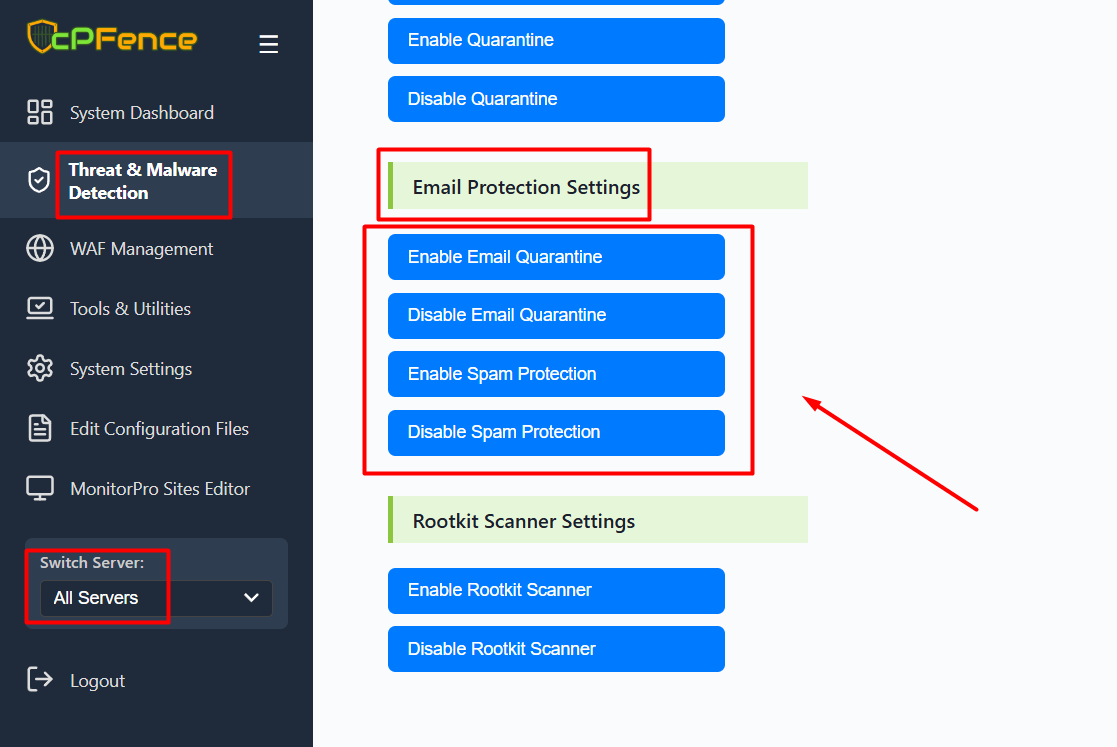
- Open the cPFence WebUI on your Main Control Panel server.
- Go to: Threat & Malware Detection → Email Protection Settings
- Use the buttons to Enable or Disable Email Quarantine and Spam Protection as needed.
You can also switch between All Servers or a specific server from the dropdown on the left sidebar to apply settings accordingly.
Note: Turning off email quarantine or spam protection does not fully disable email scanning. Emails will still be scanned and reported, but not quarantined.
If you want to completely disable email scanning on your server, run the following command:
cpfence --exclude-path /var/local/enhance/email/mailboxesThis will fully exclude your mailboxes from cPFence scanning.
Managing Email Quarantine via CLI
If you prefer command-line control, use the following commands:
- Enable Email Quarantine:
cpfence --enable-email-quarantine- Disable Email Quarantine:
cpfence --disable-email-quarantineFlexible Email Threat Management
When enabled, Email Quarantine will automatically isolate messages with infected attachments or phishing content. If disabled, cPFence will not take automatic action, giving you full manual control. Spam filtering can also be toggled separately for tailored protection.
Note: Email Quarantine and File Quarantine are managed independently—giving you granular control over how different threat types are handled.
Need Further Assistance?
If you encounter any issues or need additional help, feel free to reach out to our support team via your client portal.